

Description
Something not working? Open a ticket and we’ll reply within 48 hours.
WordPress generates several image sizes every time you upload a photo. Most themes and plugins add even more. If you’re not using all of them, they waste disk space and slow down uploads for no reason.
This plugin gives you a simple set of toggles under Tools to turn off what you don’t need:
- Thumbnail sizes — Disable any default (thumbnail, medium, medium_large, large) or custom size registered by your theme or other plugins (WooCommerce, etc.).
- Image threshold — WordPress scales down images larger than 2560 px. Change that limit or disable it entirely so originals are kept as-is.
- JPEG quality — WordPress compresses JPEGs to 82% by default. Set your own value between 1 and 100.
- EXIF rotation — Some cameras store orientation in EXIF data and WordPress rotates accordingly. Turn that off if it causes problems.
How it works
When you first activate the plugin it reads the current WordPress settings (including anything set by your theme or other plugins) so nothing changes out of the box. From that point on, the plugin takes over and you control everything from the settings pages.
After you change settings
You’ll need to regenerate thumbnails so the changes apply to images you already uploaded. We recommend:
- Regenerate Thumbnails plugin
- Or via WP-CLI:
wp media regenerate
Screenshots
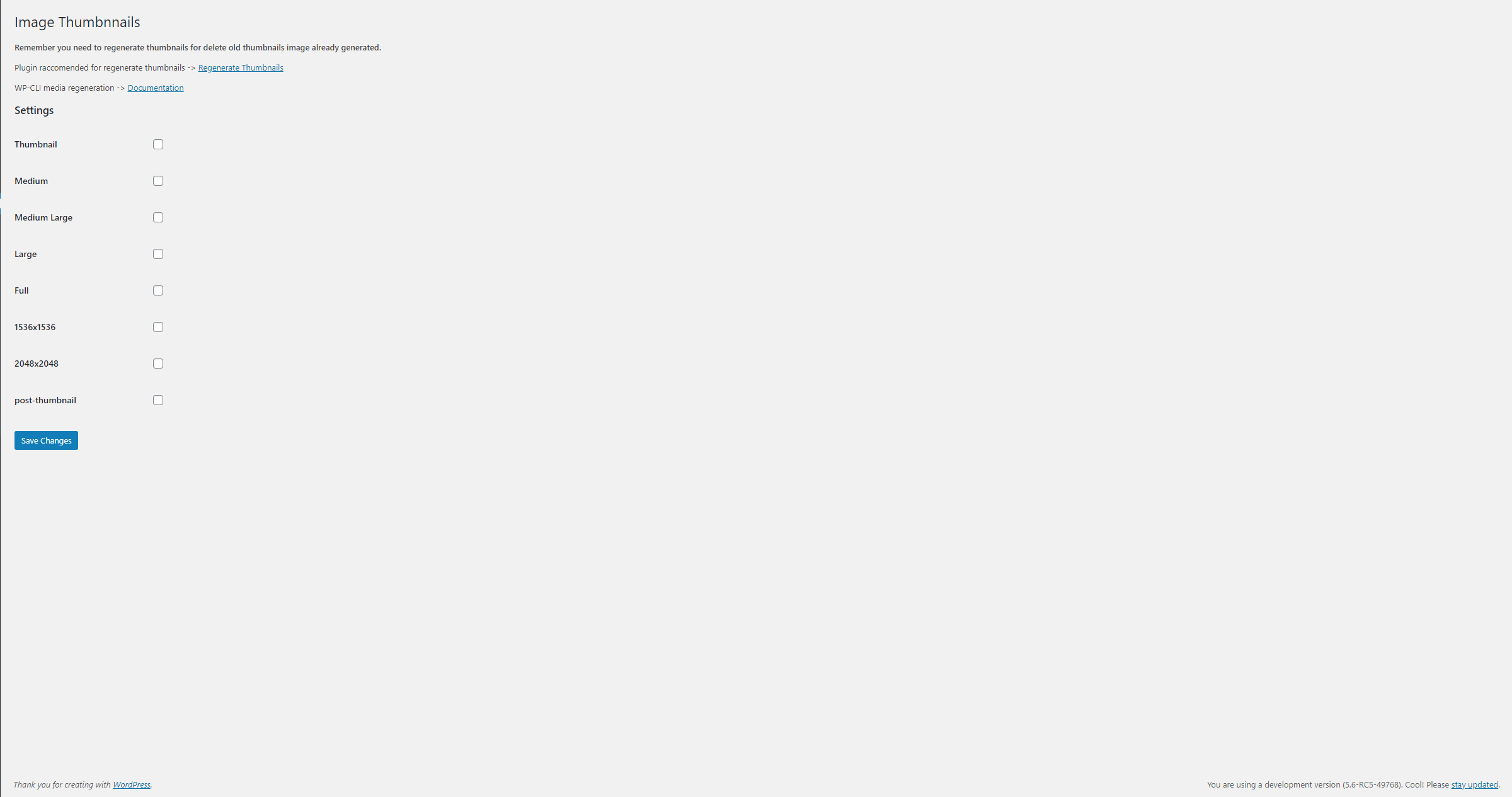
Image Sizes — toggle any thumbnail size on or off. 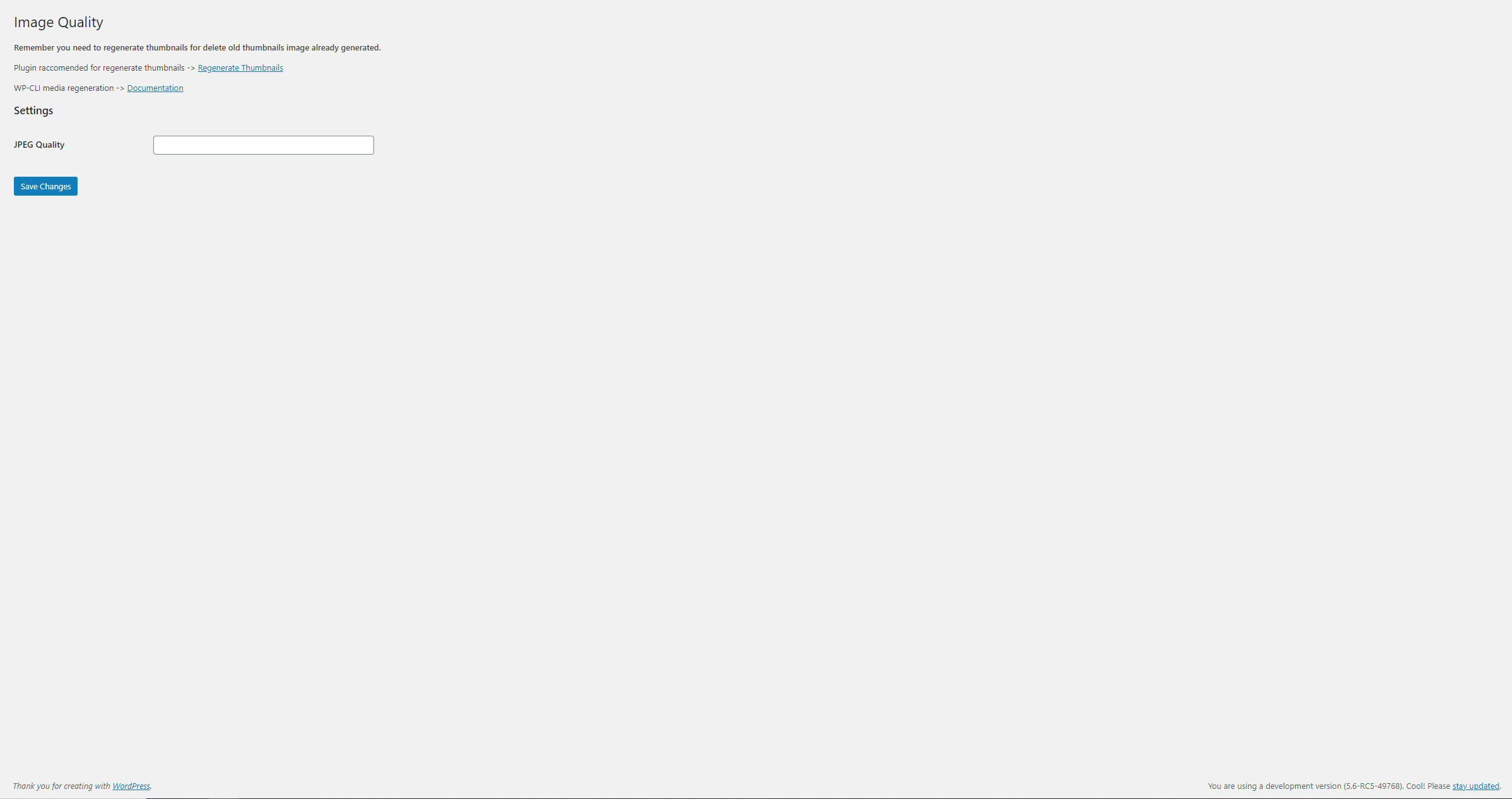
Image Quality — set the JPEG compression level. 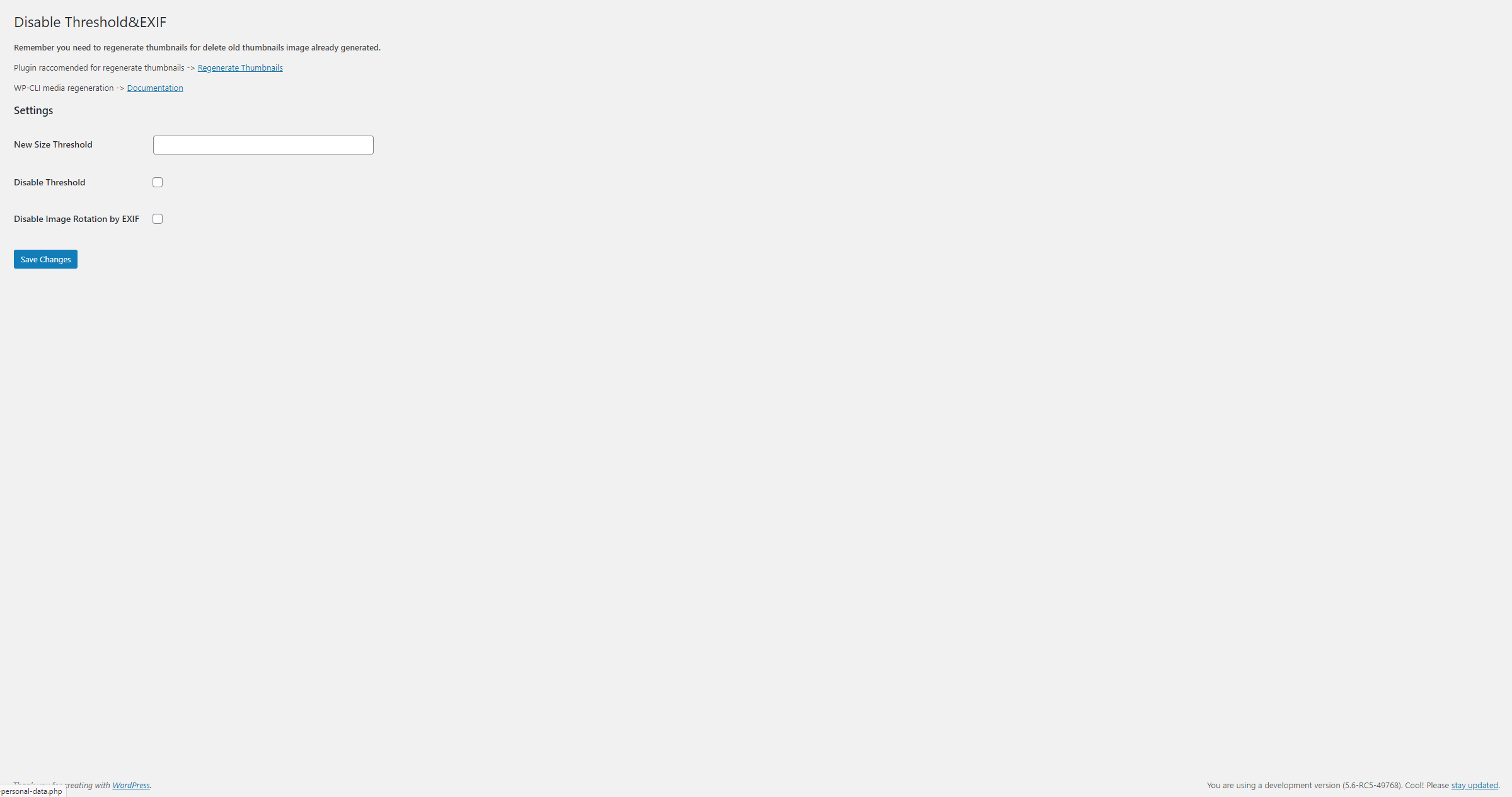
Image Threshold & EXIF — change or disable the big-image threshold, stop EXIF auto-rotation.
Installation
- Upload the plugin files to
/wp-content/plugins/or install directly from the WordPress plugin screen. - Activate through the Plugins page.
- Find the settings under Tools: Image Sizes, Image Quality, Image Threshold & EXIF.
FAQ
-
Why should I disable thumbnail sizes?
-
Every size WordPress generates takes up space on your server. If your theme only uses two or three sizes, the rest are just wasted storage. Disabling them means faster uploads and less disk usage.
-
Do I need to regenerate thumbnails after changing settings?
-
Yes. Changes only apply to new uploads. To update existing images, use a plugin like Regenerate Thumbnails or run
wp media regeneratefrom WP-CLI. -
What does «Disable Threshold» do exactly?
-
Since WordPress 5.3, any image wider or taller than 2560 px is automatically scaled down and the original is saved with a
-scaledsuffix. Disabling the threshold keeps your originals untouched. You can also set a custom value (e.g. 4000 px) instead of disabling it entirely. -
What happens if another plugin also sets JPEG quality?
-
The plugin compares your setting against the WordPress default (82%) and shows an info message below the field. Since 0.7.0 the conflict detection is safer and won’t interfere with other plugins.
-
Is this plugin compatible with WooCommerce?
-
Yes. WooCommerce registers its own image sizes and they’ll appear in the Image Sizes list so you can disable them individually.
-
Does the plugin affect the front end?
-
The settings pages are admin-only. The only thing that runs on the front end is a lightweight filter registration (no database queries) that tells WordPress which sizes to skip and what quality/threshold to use.
Reviews


Contributors & Developers
“Disable Thumbnails, Threshold and Image Options” is open source software. The following people have contributed to this plugin.
Contributors
“Disable Thumbnails, Threshold and Image Options” has been translated into 2 locales. Thank you to the translators for their contributions.
Translate “Disable Thumbnails, Threshold and Image Options” into your language.
Interested in development?
Browse the code, check out the SVN repository, or subscribe to the development log by RSS.
Changelog
0.7.0
- Improved accessibility: toggle switches are now fully keyboard-navigable with visible focus indicators and screen-reader labels.
- Better compatibility with third-party plugins on the settings pages.
- Code cleanup: updated class and method naming, added documentation, improved formatting throughout.
- Improved form field accessibility (aria-describedby, corrected input constraints).
- Internal: all settings page URLs, option names and stored data are unchanged — fully backward compatible.
0.6.5
- Bugfix.
0.6.4
- Bugfix, removed option full.
0.6.3
- Fix for version check and update old settings.
- WordPress & PHP Requirements: updated minimum to WordPress 5.4+ and PHP 7.4+.
- Code modernization and performance optimization.
- Smart initialization: plugin imports current WordPress settings on first activation.
- Intelligent debug system with conflict detection.