
Description
WebEquipe PDF Search indexes your PDF files and makes their text searchable. When visitors search your site, they see results from both your posts/pages and the content inside your PDFs. Search returns one result per PDF with an excerpt from the best-matching page.
Video
Watch the setup and usage guide:
Supported PDFs
- Works with: Standard, text-based PDFs (the kind you create or export from Word, Google Docs, etc.). File size default 50MB, configurable up to 500MB in PDF Search Settings.
- Mixed PDFs: If some pages have extractable text and others are image-only, indexing succeeds with a warning; search covers the text pages only.
- Does not work with: Scanned or image-only PDFs with no extractable text—they are marked Error with guidance to use a text-based PDF (run OCR elsewhere first). Password-protected PDFs cannot be indexed.
Keep Private PDFs Out of Search
Need to hide or protect certain PDFs? Use Exclude so a PDF is never indexed and never appears in search—even when you run «Re-index All PDFs» or bulk index. Excluded PDFs stay in your Media Library; they just won’t be searchable. Use Include later to allow indexing again. You can exclude or include PDFs from the Media Library or from PDF Search Manage PDFs.
How to Use
- Install and activate the plugin.
- Open PDF Search in the WordPress admin sidebar (Dashboard is the home screen).
- Click Re-index All PDFs on the Dashboard or PDF Search Index Activity to index existing PDFs (new uploads are indexed automatically when Enable PDF Indexing is on).
- Use your site’s search or add the shortcode
[webequipe_pdf_search_form]on a page—PDFs will appear in results when Enable Search Integration is enabled.
Use PDF Search Manage PDFs to scan the library, filter by status, and run bulk actions. Use PDF Search Index Activity to review indexing runs, export a CSV log, or start another full re-index.
Settings at a Glance
All options are under PDF Search Settings:
- General – Enable PDF indexing on upload, include PDFs in WordPress search, maximum file size (50MB default), search result excerpt length.
- Indexing options – Batch size (PDFs per re-index step), pages per batch (background page steps), page index threshold (when large PDFs switch to page-by-page indexing), max page content length (0 = unlimited; re-index after changing).
- Search display options – Show or hide PDF icon, file size, page count, last updated date, author, thumbnail preview, and summary/snippet text in search results.
- Advanced – Debug logging, memory limit, processing timeout, background processing, delete data on uninstall.
Full details and shortcode options: PDF Search Help.
What You Can Do
- Dashboard – Indexed PDF count, pages indexed, coverage, search health, recent activity, quick links, and Re-index All PDFs (status banner uses live index data).
- Manage PDFs – Scan the library, filter by status (including Processing / Scheduled), cancel in-flight jobs, bulk actions, and accurate Re-index All progress with a do-not-refresh notice.
- Full-text search – Search inside PDF content by page; one result per PDF with the best-matching excerpt.
- Control each PDF – Index, unindex, exclude, or retry from the Media Library, Manage PDFs, or the attachment screen.
- Bulk actions – Index, unindex, include, or exclude multiple PDFs at once (Media Library or Manage PDFs).
- Index Activity – Filterable log of every indexing run, stats, and CSV export.
- Search display – Configure icons, meta, previews, and excerpts in settings.
- Shortcode – Add a PDF-only search form with
[webequipe_pdf_search_form](see PDF Search Help). - Background processing – Large PDFs above the page threshold are indexed page-by-page in the background to avoid timeouts.
Pro Version — OCR, Private Search & Analytics
The free plugin indexes standard text-based PDFs. WebEquipe PDF Search Pro is optional (sold separately) and extends the free plugin with three features document-heavy sites often need:
OCR for Scanned PDFs (Starter, Pro & Agency)
Scanned PDFs, archived documents, and image-based files are invisible to the free plugin. Pro uses Google Vision OCR to read and index them automatically on upload—no pre-processing, no extra tools. Government records, old meeting minutes, scanned handbooks: all searchable.
Private PDF Search (Pro & Agency)
Mark any PDF as Private. It remains fully indexed but disappears from search results for logged-out visitors. Perfect for member-only handbooks, restricted resources, and confidential documents—without removing them from your Media Library.
Analytics Dashboard (Pro & Agency)
See exactly what visitors search for and—more importantly—what they search for and don’t find. Zero-result queries are your content gap list. Top queries, most-clicked PDFs, and click-through rates, all in one admin screen.
Plans at a glance:
- Free – Full-text search, auto indexing, shortcode, bulk actions, multisite. Forever free.
- Starter – Everything in Free + OCR (1,000 pages/month), advanced filters. From $89/yr.
- Pro – Everything in Starter + Private PDF search, Analytics dashboard, 3,000 OCR pages/month, 5 sites. From $169/yr.
- Agency – Everything in Pro + white-label mode, 10,000 OCR pages/month, unlimited sites. From $529/yr.
See full pricing and feature comparison
Troubleshooting
PDFs not appearing in search
Ensure PDFs are indexed (Media Library «Search Indexed» column), Enable Search Integration is on, and the PDF is not excluded. Check PDF Search Manage PDFs for Error status and use Index Activity to see why a run failed.
Indexing fails or times out
In PDF Search Settings: enable Background Processing, review Pages Per Batch and Page Index Threshold for large files, and lower Batch Size if Re-index All PDFs stops early. Under Advanced, adjust Processing Timeout and ensure PHP memory_limit and max_execution_time are sufficient (see Help). Very large PDFs are processed in multiple page batches automatically when over the threshold.
Scanned PDFs marked as Error
The free plugin cannot extract text from image-based or scanned PDFs—this is expected. To index scanned PDFs, use WebEquipe PDF Search Pro (Starter plan and above) which includes built-in Google Vision OCR. See Pro plans
Legacy index after upgrade
If you see a notice about migrating to per-page indexing, run Re-index All PDFs from the Dashboard or Index Activity page.
Other issues
See the FAQ above and PDF Search Help for full documentation.
Privacy
The plugin stores extracted PDF text and metadata in custom database tables (webequipe_pdf_search_files, webequipe_pdf_search_pages, and webequipe_pdf_search_activity, with a legacy webequipe_pdf_search_index table until you re-index). A compressed backup may also be stored in WordPress post meta for PDF attachments. If debug logging is enabled, recent log entries are stored in a WordPress option (not written directly to disk). The plugin does not collect or send visitor search data to external services. If your PDFs contain personal or sensitive information, that content is in the index—mention this in your privacy policy if required.
Third-Party Libraries
- smalot/pdfparser (LGPL-3.0) – PDF text extraction
- symfony/polyfill-mbstring (MIT) – multibyte string support
Credits
Developed by WebEquipe. Uses smalot/pdfparser for PDF text extraction.
Support
- Support: https://wordpress.org/support/plugin/webequipe-pdf-search
- Pro plans and pricing: https://webequipe.com/pdf-search/
Screenshots
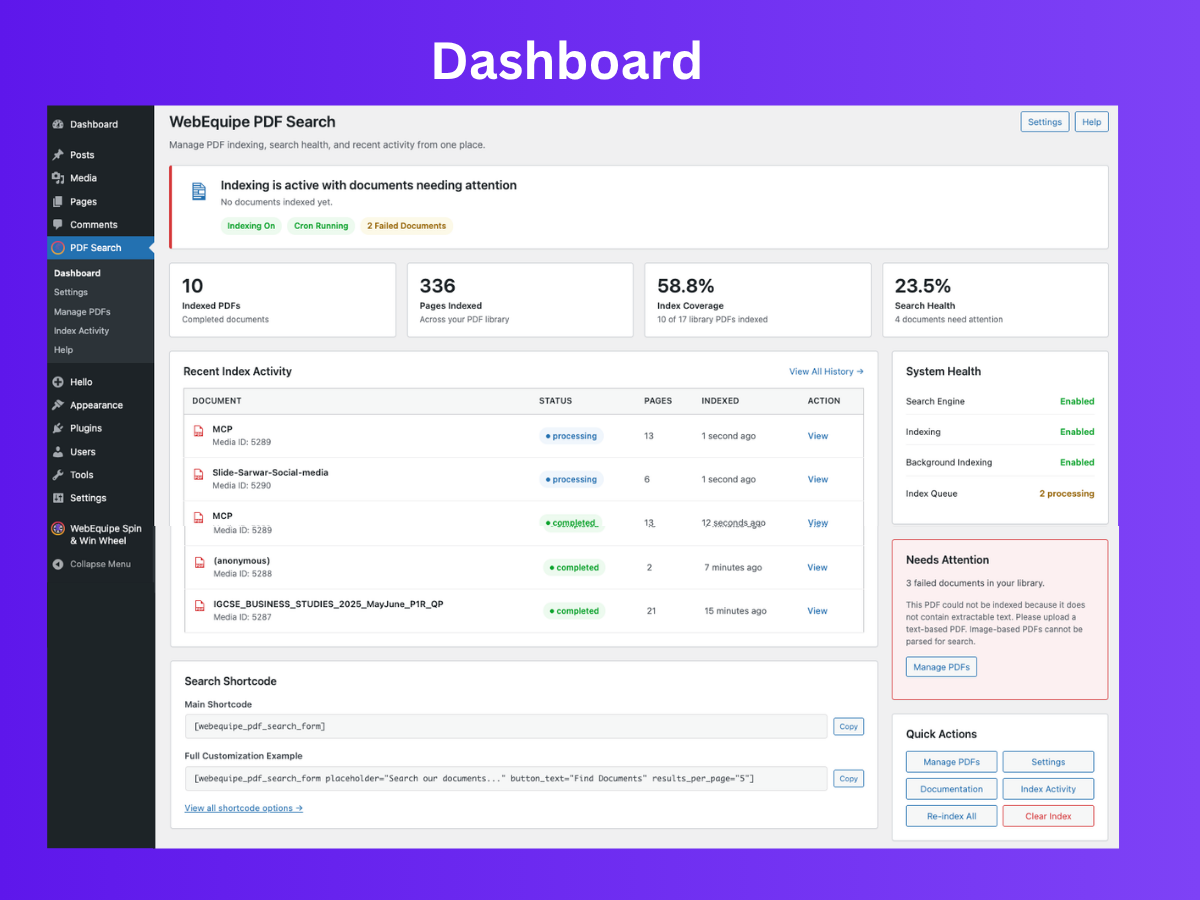
Dashboard – indexed PDF count, pages indexed, index coverage, recent activity log, system health, and quick-action buttons from one screen. 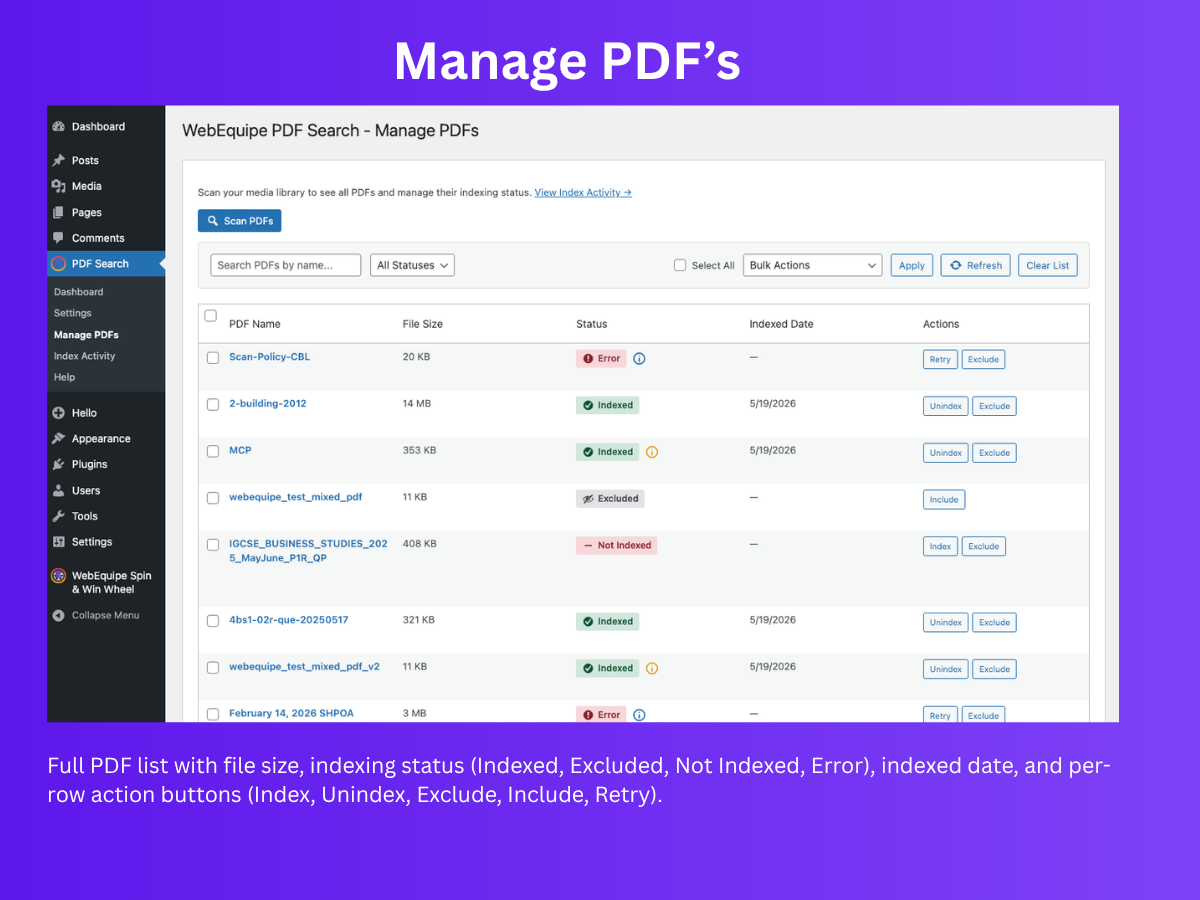
Manage PDFs – full PDF list with file size, status badges (Indexed, Excluded, Not Indexed, Error), indexed date, and per-row action buttons. 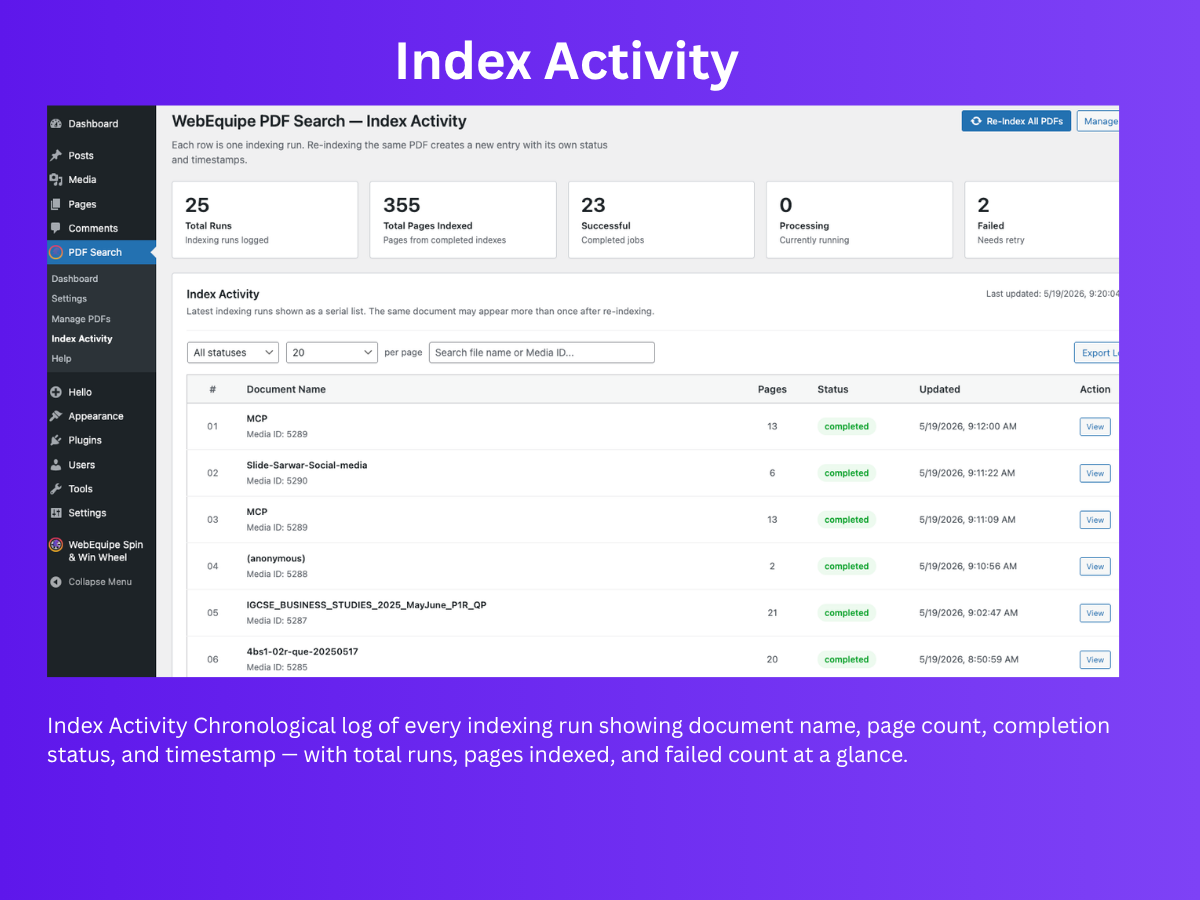
Index Activity – chronological log of every indexing run with document name, page count, status, and timestamp, plus total run stats at a glance. 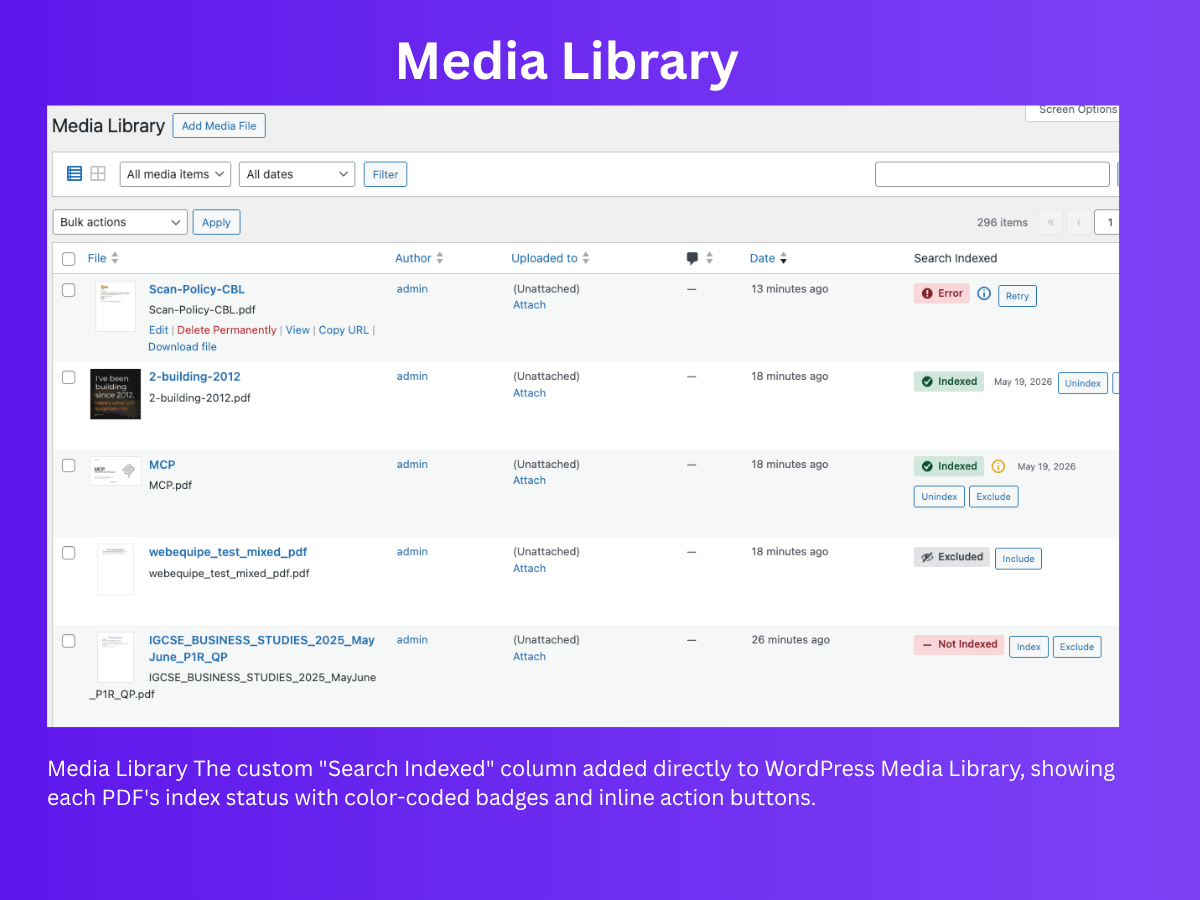
Media Library – custom «Search Indexed» column with color-coded status badges and inline action buttons added directly to the WordPress Media Library. 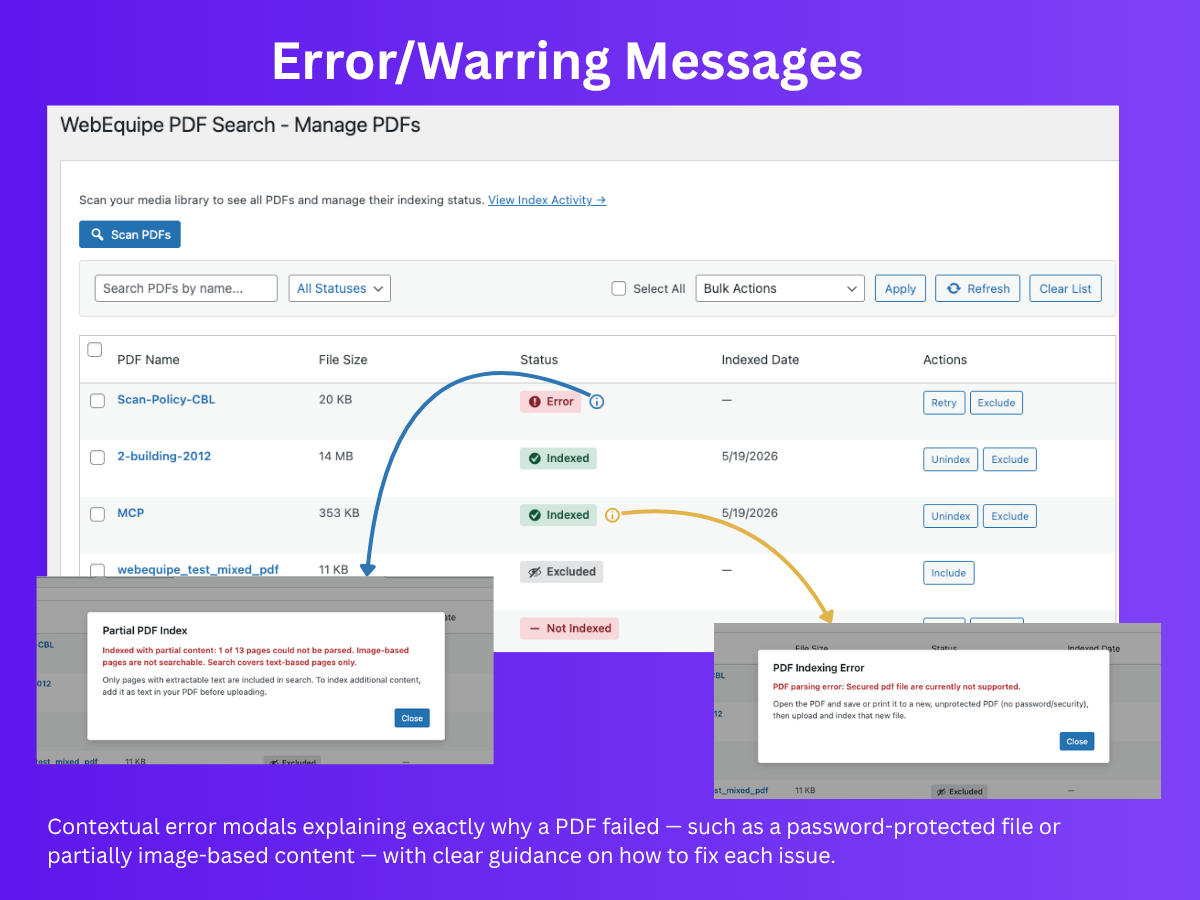
Error/Warning Messages – contextual error modals explaining why a PDF failed (password-protected, image-based, etc.) with clear fix guidance. 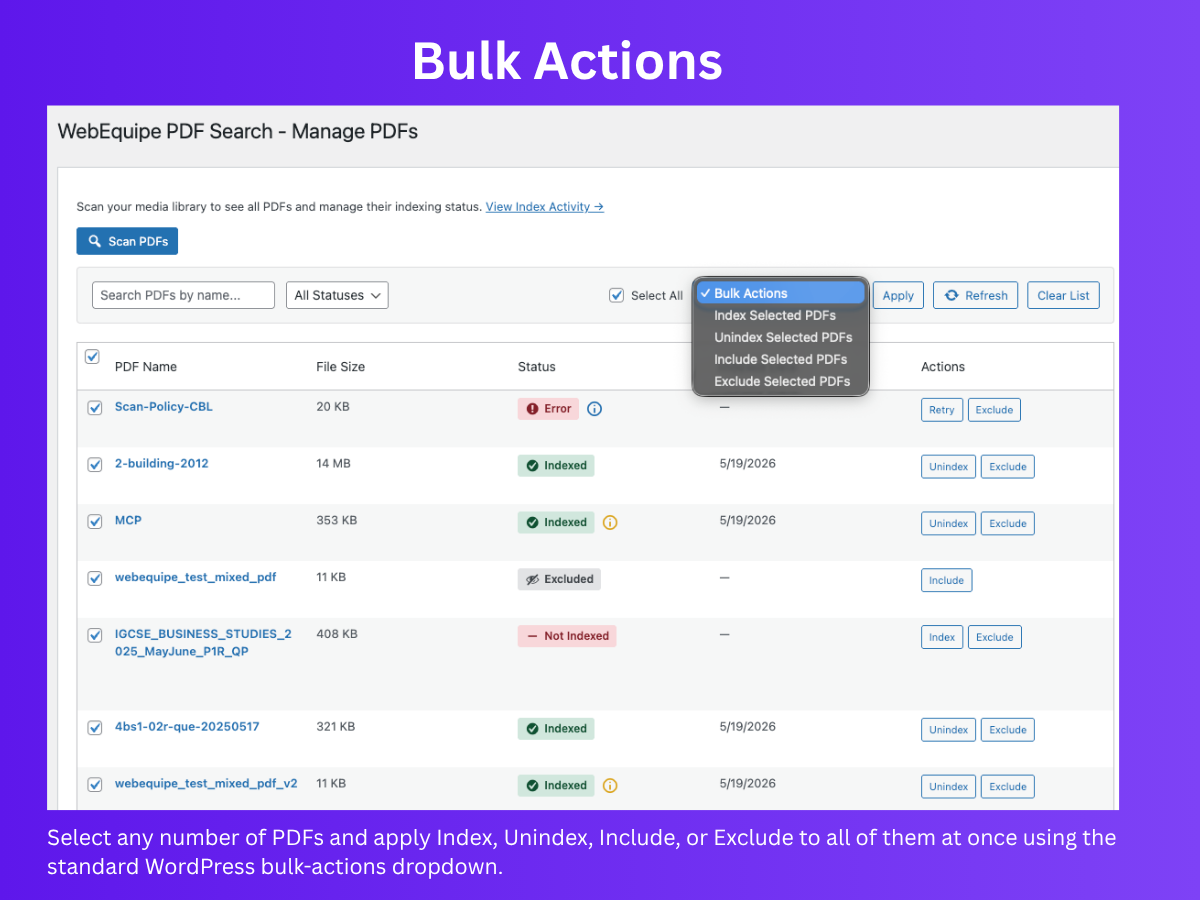
Bulk Actions – select multiple PDFs and apply Index, Unindex, Include, or Exclude to all at once using the standard WordPress bulk-actions dropdown. 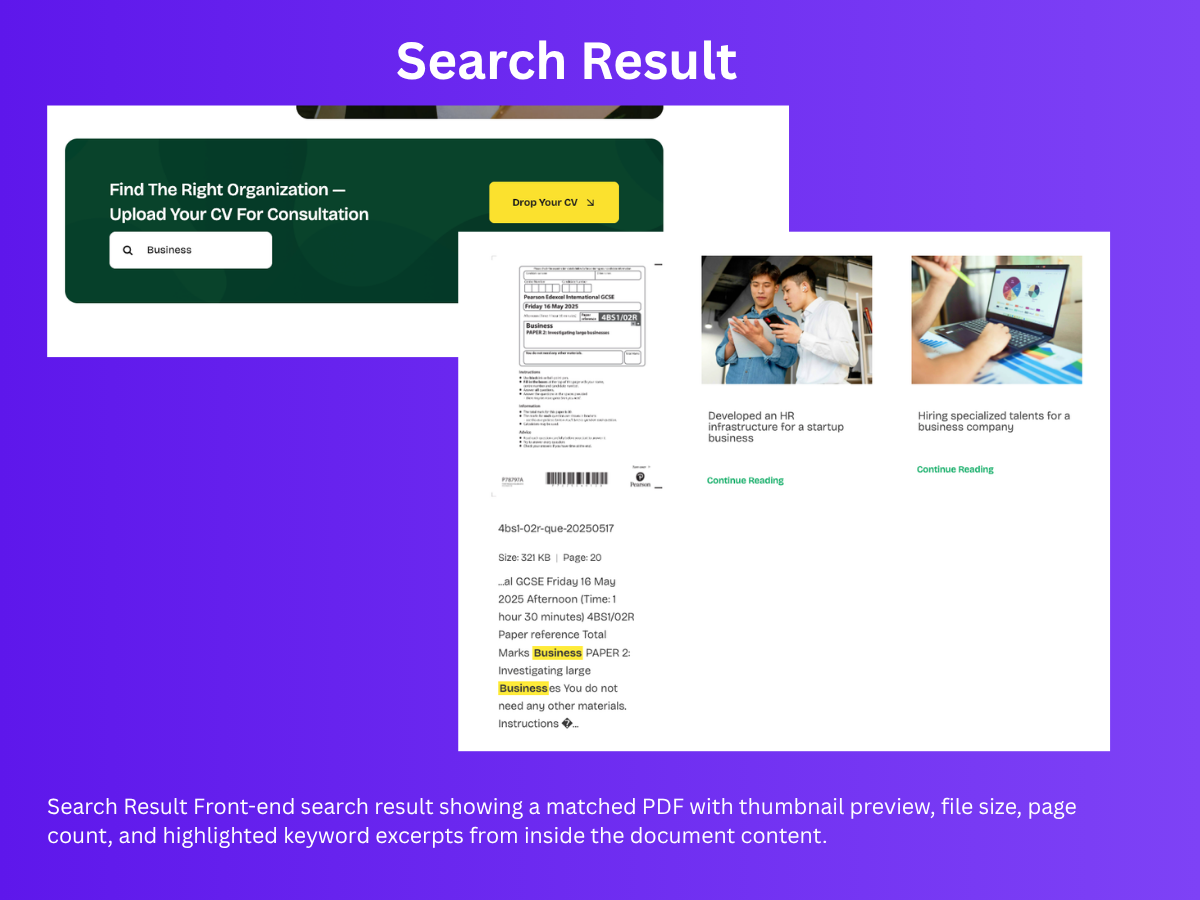
Search Result – front-end PDF result showing thumbnail preview, file size, page count, and highlighted keyword excerpts from inside the document content. 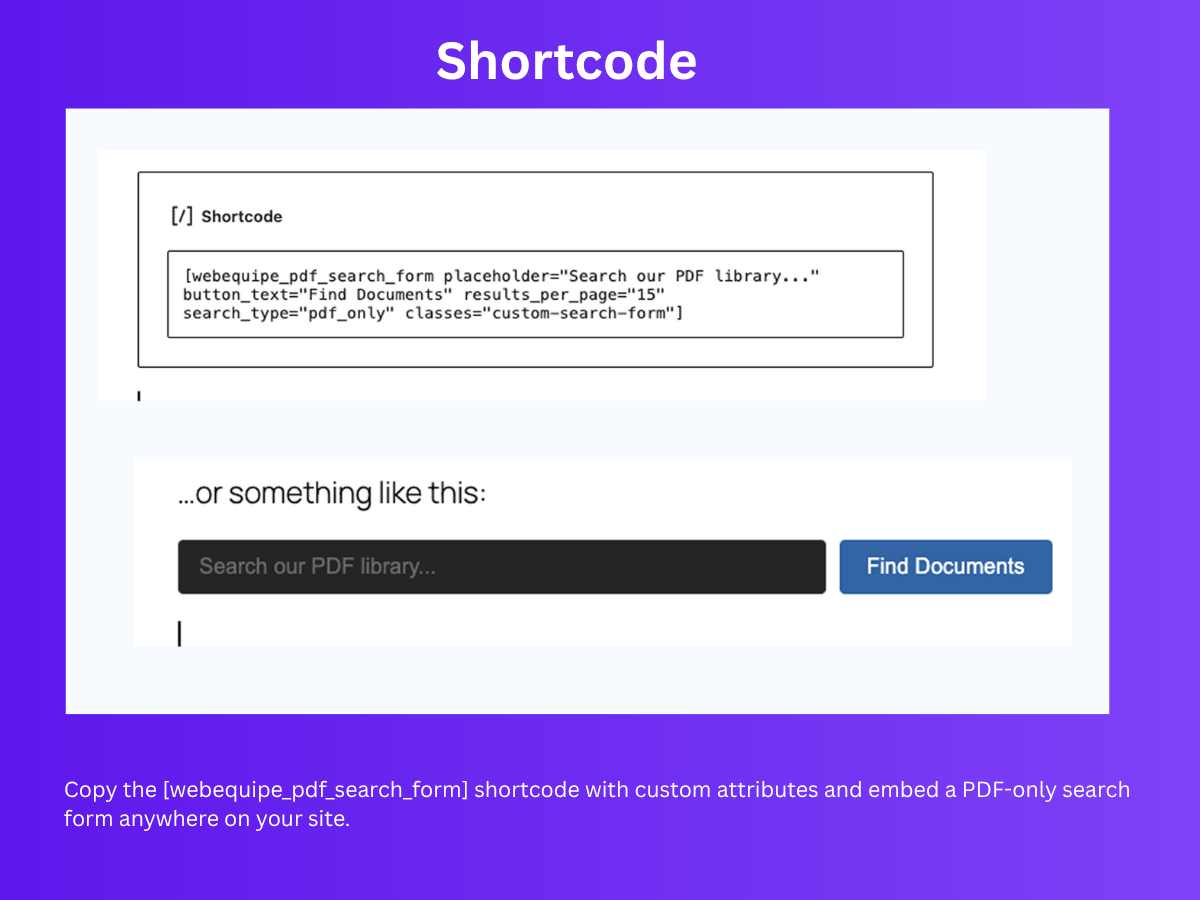
Shortcode – copy the [webequipe_pdf_search_form] shortcode with custom attributes and embed a PDF-only search form anywhere on your site.
Installation
From WordPress Admin
- Go to Plugins Add New.
- Search for «WebEquipe PDF Search», install, and activate.
Manual Install
- Download the plugin zip.
- Go to Plugins Add New Upload Plugin, upload the zip, then install and activate.
After Activation
- Open PDF Search Settings and review the options your site needs:
- Enable PDF Indexing – on if new uploads should index automatically (recommended).
- Enable Search Integration – on if PDFs should appear in your theme’s normal site search.
- Maximum File Size – raise only if you index PDFs larger than the default 50MB.
- Indexing options – adjust batch size or page-batch settings if you have very large PDFs or timeouts (defaults work for most sites).
- Search display options – choose what visitors see in PDF search results (icon, size, pages, author, preview, excerpt).
Click Save Changes when finished.
- Go to PDF Search Dashboard and click Re-index All PDFs to index PDFs already in your Media Library.
- Wait for indexing to finish (large libraries run in batches; check PDF Search Index Activity for progress and any errors).
- Test your site search or a page with
[webequipe_pdf_search_form]to confirm PDFs appear. - Optional: use PDF Search Manage PDFs to scan the library, exclude private files, or index individual PDFs; use Media Library for the same actions on each file.
- If you upgraded from 1.1.x or earlier, step 2 is required once so the per-page index replaces legacy data (an admin notice appears until you re-index).
- See PDF Search Help for full documentation and troubleshooting.
FAQ
-
What kind of PDFs are supported?
-
Standard, text-based PDFs (e.g. exported from Word or Google Docs). Default max size 50MB (up to 500MB in PDF Search Settings). Scanned or image-only PDFs with no extractable text are marked Error in the free plugin—use WebEquipe PDF Search Pro for OCR, or run OCR elsewhere and upload a text-based PDF. Password-protected PDFs cannot be indexed. Mixed PDFs (some text pages, some image-only) index with a warning; search uses the text pages only.
-
Does it work with scanned PDFs?
-
Not in the free version. Scanned PDFs are image files with no extractable text—the free plugin marks them as Error. WebEquipe PDF Search Pro (Starter plan and above) uses Google Vision OCR to index scanned and image-based PDFs automatically on upload. No pre-processing or extra tools needed. See Pro plans
-
Can I restrict certain PDFs to logged-in users only?
-
Not in the free version. The free plugin’s Exclude feature keeps PDFs out of search entirely, but cannot show them only to logged-in visitors. Private PDF Search is available on Pro and Agency plans—mark any PDF as Private and it becomes invisible in search for logged-out visitors while remaining fully indexed for members. See Pro plans
-
Is there an analytics dashboard to see what visitors search for?
-
Not in the free version. The Analytics Dashboard—showing top search queries, zero-result searches, and most-clicked PDFs—is available on Pro and Agency plans. Zero-result queries show you exactly what content visitors need but can’t find. See Pro plans
-
Is there a Pro version?
-
Yes. WebEquipe PDF Search Pro adds OCR for scanned PDFs, Private PDF search for logged-in users only, an Analytics dashboard, advanced search filters, white-label mode (Agency), and more. View plans and pricing
-
Why don’t my PDFs appear in search?
-
- Ensure they are indexed: in Media Library, check the «Search Indexed» column (green check = indexed; Error or Not Indexed need action).
- If not indexed, use Index on the PDF, bulk Index PDFs, or Re-index All PDFs from PDF Search Dashboard or Index Activity.
- Ensure Enable Search Integration is on in PDF Search Settings for normal site search. The shortcode works even when this is off.
- Confirm the PDF is not Excluded.
-
How do I hide or protect private PDFs from search?
-
Use Exclude on the PDF (Media Library or PDF Search Manage PDFs). Excluded PDFs are never indexed and never appear in search, even after Re-index All PDFs. Use Include, then Index, to allow indexing again.
To keep a PDF indexed but hidden from logged-out visitors only (e.g. for member resources), use Private PDF Search available on Pro and Agency plans. See Pro plans
-
What’s the difference between Unindex, Exclude, and Include?
-
- Unindex – Removes the PDF from search for now. You can index it again anytime (e.g. Index or Re-index All PDFs).
- Exclude – Keeps the PDF out of indexing until you clear it. Re-index All PDFs and bulk Index PDFs skip excluded PDFs. Use for private or sensitive files.
- Include – Clears the exclude flag so the PDF can be indexed again. You still need to run Index or Index PDFs after including.
-
How do I index or re-index many PDFs at once?
-
Media Library: Select the PDFs Bulk Actions «Index PDFs» (or «Unindex»/»Exclude»/»Include») Apply.
Manage PDFs: Go to PDF Search Manage PDFs Scan PDFs select PDFs choose bulk action Apply. You can also filter by status (Indexed, Not Indexed, Excluded, Errors).
-
What’s the maximum PDF size?
-
Default is 50MB. You can raise it (up to 500MB) in PDF Search Settings Maximum File Size.
-
Will it slow down my site?
-
No. Indexing runs in the background (including page-by-page steps for large PDFs) and search reads the index. Visitors are not waiting for PDF parsing during search.
-
I upgraded from 1.1.x or earlier. Do I need to re-index?
-
Yes. Run Re-index All PDFs once after upgrading to 1.2.x so each PDF is stored in the per-page tables and search uses the new index. Until then, a notice may appear on PDF Search admin screens if legacy index data remains.
-
Password-protected PDFs?
-
They cannot be indexed because the plugin cannot read their content without the password.
-
Multisite?
-
Yes. Each site has its own index.
Reviews

Contributors & Developers
“WebEquipe PDF Search” is open source software. The following people have contributed to this plugin.
Contributors

Translate “WebEquipe PDF Search” into your language.
Interested in development?
Browse the code, check out the SVN repository, or subscribe to the development log by RSS.
Changelog
1.2.2
- Fixed: Dashboard status banner no longer shows «No documents indexed yet» when PDFs are already indexed; counts and last index date use the per-page index tables.
- Fixed: Clear Entire Index now clears per-page files/pages data and related post meta, not only the legacy index table.
- Improved: Manage PDFs — summary metrics, Scan PDFs, last-scanned time, pagination, and clearer status (Indexed, Not Indexed, Processing, Scheduled, Stalled, Error, Excluded).
- Improved: Re-index All PDFs processes every non-excluded PDF (including when Manual Only indexing is selected); large files queue as Scheduled so smaller PDFs are not skipped; progress warns you to keep the page open until finished.
- Improved: Index Activity status for the current run matches Manage PDFs; Refresh added; stale log rows sync when indexing finishes elsewhere.
- Added: Cancel in-flight indexing from Manage PDFs; Resume for stalled jobs; contextual indexing error details (including when Pro OCR may help for scanned or secured PDFs—link to PDF Search Upgrade to Pro in admin only).
- Added: WebEquipe PDF Search Pro — OCR for scanned PDFs, Private PDF Search, and Analytics Dashboard. See plans
1.2.1
- Readme and user-facing docs aligned with 1.2.x admin UI (PDF Search menu, Dashboard, Index Activity, per-page indexing, and current settings).
- Tested up to WordPress 7.0.
1.2.0
- Per-page indexing: file metadata and page content stored in separate tables; large PDFs indexed in background page batches.
- Settings: Max Page Content Length (0 = unlimited per page), Pages Per Batch, Page Index Threshold.
- Search: FULLTEXT/LIKE on page content; one result per PDF with excerpt from the best-matching page.
- Legacy index kept until re-index; run Re-index All PDFs to migrate existing PDFs.
- Index Activity admin page with stats, filterable activity log (one row per indexing run), CSV export, and Re-Index All PDFs.
- Redesigned Dashboard with status banner, metrics, recent activity, shortcodes, and system health sidebar.
- Dismissible Pro launch banner on PDF Search admin pages (early access CTA; not shown after dismiss).
- Image-only PDFs marked Error; mixed PDFs indexed with admin warning.
1.1.1
- Admin safety fix: when new Dashboard/Manage view files are missing in partial installs, plugin now falls back to Settings page instead of showing PHP include warnings.
1.1.0
- Admin UI: moved to top-level PDF Search menu with dedicated Dashboard, Settings, Manage PDFs, and Help pages.
- Branding/UX: consistent page headings and improved Settings page card layout.
- Logging: debug entries are stored via WordPress option/hooks only (no direct filesystem writes), improving compatibility on FTP/SSH filesystem hosts.
1.0.2
- Indexing and debug log: avoid WordPress filesystem/FTP on direct file reads (fewer crashes on bulk re-index with Debug Logging on).
- Processing Timeout now applies per PDF during indexing (typical 30s PHP limit workaround).
- Help: short note on Processing Timeout and host limits.
1.0.1
- Block theme and theme compatibility: PDF meta shows in block themes (e.g. Twenty Twenty-Four/Five) and themes without excerpt block; no duplicate preview or double meta (Astra/Elementor).
- Theme-agnostic CSS: only
webequipe-pdf-*classes; improved preview/meta sizing and alignment. - «Show Author» setting to show uploader name in result meta; Avada compatibility for PDF excerpts.
- Help page and PHPCS/compliance updates.
1.0.0
- Initial release
- Automatic PDF indexing on upload (optional)
- Full-text search in WordPress search and via shortcode
- Settings page: indexing, display options, shortcode, PDF list
- Media Library: index status and per-PDF actions (Index, Unindex, Exclude)
- Bulk actions: Index, Unindex, Include, Exclude
- Exclusion system to keep private or sensitive PDFs out of search
- Background processing for large PDFs
- Template tags and Help documentation
- WordPress Multisite support